Dictating
Dictate into any app with one key, send the words to a coding agent session or the Inbox, and teach localvoxtral the names you say. Every setting is listed at the end, under Settings.
Shortcuts
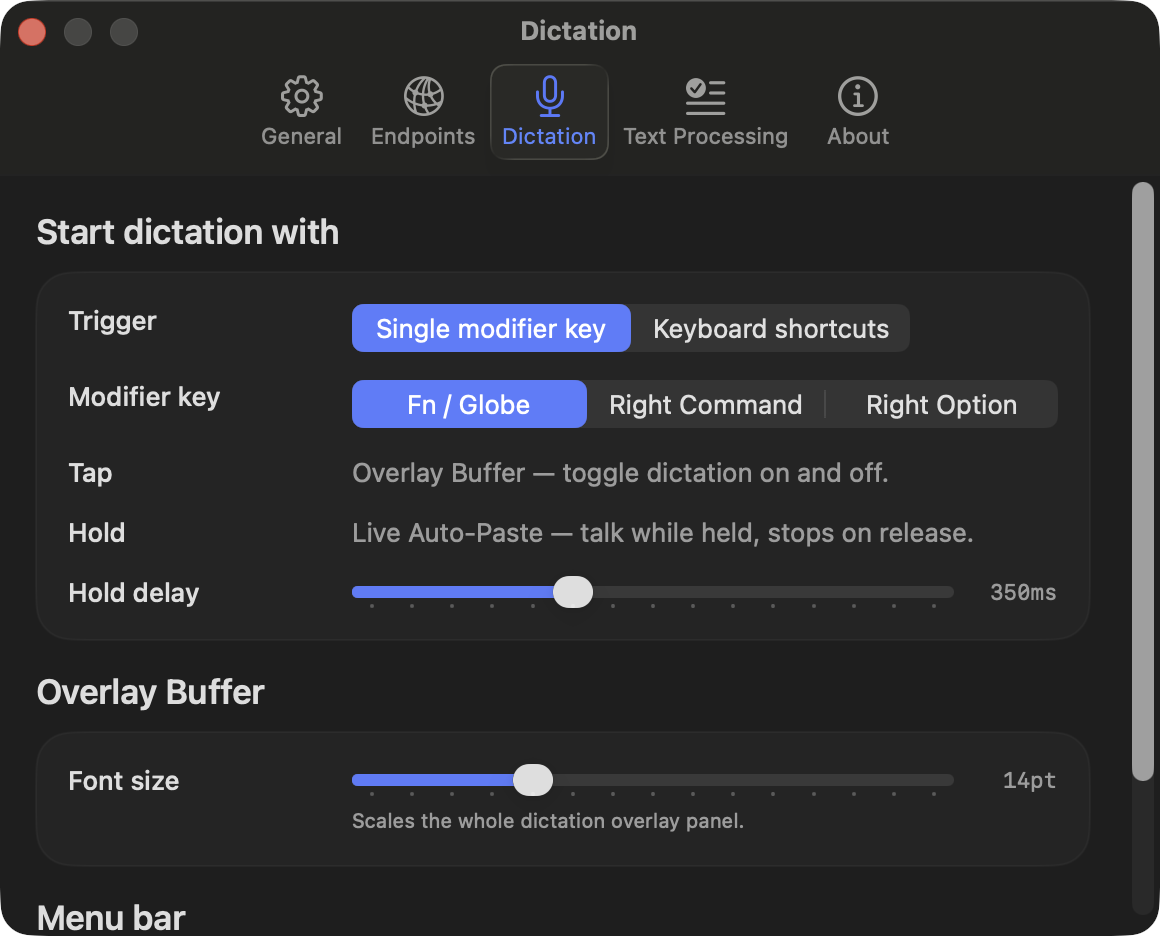
One key dictates. You pick it in Settings → Dictation, as one of two triggers.
Modifier keys. Fn/Globe, Right Command, Right Option, or a chord: two modifier keys or more pressed together, such as left Shift and right Shift. Left Shift and right Shift is the chord until you record another under Chord keys. This trigger needs Accessibility permission.
| Gesture | Behavior |
|---|---|
| Tap | Start an Overlay Buffer dictation; tap again to stop |
| Hold (past the hold delay, default 350 ms) | Dictate while held; letting go stops |
Pressing any other key while the modifier is down cancels the gesture. Your usual shortcuts with that modifier therefore still work.
A chord counts only when its keys go down within 100 ms of each other, so holding one Shift while typing never starts a dictation. The hold delay starts once the last key of the chord is down, and a hold ends as soon as one of them goes up.
Keyboard shortcut. You record one dictation shortcut, and the Toggle or Push to Talk setting decides how it behaves. A shortcut needs at least one modifier, except for a function key.
F1 to F20 can be recorded on their own, so a spare F13 to F20 on a full-size keyboard makes a dedicated dictation key. F1 to F12 are accepted too, but macOS uses those presses for brightness and media. The app never sees them until Use F1, F2, etc. keys as standard function keys is on in System Settings.
Escape cancels an in-progress dictation.
Record a chord of modifier keys
To make Answer the agent that needs you, Quick capture to Inbox or Copy last dictation a chord of modifier keys, such as left Shift and right Shift together:
- Click the shortcut's field.
- Press the keys together.
- Let go.
The chord fires when you let go, under the dictation chord's 100 ms rule above, and only if no other key went down in between. A chord needs Accessibility permission. One chord does one job: the dictation key's chord can't also be one of these.
Choose an output mode
Overlay Buffer collects your words in a floating overlay and commits them when you stop. Live Auto-Paste types them into the focused app while you talk.
Overlay Buffer
Your words collect in a floating overlay while you speak. When you stop, the text goes through the replacement dictionary and optional LLM polishing, then commits into the focused app. A long dictation can be polished while you speak (Polishing).
While you speak, bars at the top left of the overlay move with your voice. When you stop with polishing on, a band sweeps the words until the polished text arrives. The words the LLM changed then show in teal for about a second, while the text is already going into the app. To use your system accent color instead, set Color for polished words in Settings → Dictation → Overlay Buffer. The menu bar popover keeps the raw transcript.
To move the overlay, drag it by any part to a spot of your choice. It stays there across restarts. To anchor it to the focused window again, double-click it or use Re-anchor in Settings → Dictation → Overlay Buffer.
If you unplug the display the overlay sits on, the app keeps the position. Until that display is back, it shows the overlay at the anchor.
Stop after silence
Stop dictating after silence (Settings → Dictation → Overlay Buffer) ends a dictation once no new words have appeared for a set time. It offers Never, the default, and After 5 s, 8 s, 15 s or 30 s. The stop is the same as pressing the key, so polishing and the commit run as usual.
It applies only to Overlay Buffer dictations started by a tap: a tap of the modifier keys, a keyboard shortcut set to Toggle, or a destination shortcut. A held dictation stops on release, and Live Auto-Paste has typed its words already, so neither stops on silence.
- The time counts from the last new words, not from the last sound you made.
- A dropped connection pauses the count. It restarts from zero once the app reconnects.
- A change to the setting applies from the next dictation.
With "send it". A dictation that ends in a send phrase stops after Wait before pressing Return (3 s unless you change it), sooner than the shortest silence setting (see Press Return with "send it"). A silence stop presses Return only when that send-phrase stop would have. Code: silence stop, send-phrase stop.
Live Auto-Paste
Live Auto-Paste is off until you set it up under Settings → Dictation → Advanced:
- with modifier keys, turn on Hold the key for Live Auto-Paste;
- with keyboard shortcuts, record a Live Auto-Paste shortcut.
Words then land in the focused app while you talk. The app applies dictionary replacements before typing, and never backspaces over text an app has already drawn. It has no overlay, so Tab does not apply.
Keeping words on their line
Set Keep words from jumping to the next line (Settings → Dictation → Overlay Buffer) to 6, 10 or 14 letters.
Words reach the overlay a few letters at a time, so a word that starts near the end of a line can jump to the next one once it no longer fits. By default the overlay allows this and fills every line to the edge. With the setting, a word that starts with less room than that many letters goes straight to the next line and stays there for the rest of the dictation.
Lines can then end with empty space up to the width of that many letters. The committed text is the same either way.
Where the words go
Press Tab during a dictation to send the words somewhere else, and ⇧Tab to go back. The top of the overlay names where the words go, and "2 of 5" says how many places they could go, in this order:
- The app you started in, named after its coding agent session when it has one. A dictation goes here unless you press Tab.
- Inbox: a quick capture. The words are saved there and never typed anywhere.
- Each coding agent session that needs you, oldest first, when Tell me when an agent needs you is on. Picking one brings its pane forward, and your words go there when you stop.
→ and ← move the same way. None of these keys reach the app you are dictating into while the overlay is open. One Tab therefore always sends the dictation to the Inbox, and a second reaches the session that has waited longest.
While you move, the overlay lists every destination under its top line. The list closes two seconds after your last move. A click on a destination in the list picks it, and a click on the name at the top opens the list.
The optional Quick capture to Inbox shortcut under Settings → Dictation → Output starts a dictation with the Inbox already picked. Pressed during a dictation, it picks the Inbox the way Tab would. Pressed again, it stops. It can be a chord of modifier keys.
Voice commands
Some spoken phrases act instead of being typed:
- "send it" presses Return (below);
- "go to payments" brings a session forward (Go to a session by voice);
- "send that to payments" sends the dictation to that session (Send a dictation to another session);
- "call this session payments" names the session (Name a session);
- "paste clipboard" inserts the clipboard as a code block (Polishing).
Press Return with "send it"
In a terminal or Claude Desktop, end a dictation with "send it" or "send now". The app inserts the text without those words, then presses Return in the same app. A coding agent gets the prompt without you touching the keyboard.
The option is off by default. Turn it on per mode in Settings → Dictation; the Live Auto-Paste switch is under Advanced.
Your own phrases. Settings → Dictation → Output → Send phrases replaces "send it" and "send now" with your list, separated by commas, in both modes. A phrase has at most four words. The app refuses a single common word ("go", "done", "enter"), since you say it in ordinary prompts.
Overlay Buffer stops on its own. When the words end in a send phrase and the wait passes with no new words, the dictation stops as if you pressed the key: polish, commit, then Return. Settings → Dictation → Output → Wait before pressing Return sets the wait: 1, 1.5, 2 or 3 seconds, 3 by default.
- A phrase in the middle of a sentence does nothing.
- Speaking again within the wait keeps the dictation going.
- The key still stops it at once.
- A held (push to talk) dictation stops only on release.
- A quick capture stops the same way and goes to the Inbox without the phrase. It never presses Return.
- Live Auto-Paste does not wait: it presses Return when you finish the phrase.
Choosing the wait. A shorter wait sends sooner, but it also ends a dictation where you said a send phrase and then paused mid-sentence. In measured dictations, about 6 % of pauses in speech last 3 s or more and about 9 % last 2 s or more. The choices stop at 1 s because words reach the app half a second to a second after you say them: a shorter wait could press Return before the end of your sentence arrives, and a sent prompt cannot be taken back.
Overlay Buffer and polishing. The app removes the phrase before polishing, so the polisher never sees it.
Live Auto-Paste. The app can only remove the phrase before typing it. With the option on, each phrase therefore appears when you finish it rather than word by word. Saying the same "… send it" phrase twice in a row sends it once. Once any text of a dictation lands in another app, "send it" does nothing until the dictation ends.
When neither mode presses Return:
- in any app other than a terminal or Claude Desktop;
- while Secure Keyboard Entry is on;
- when the text could not be inserted into that app.
The app treats an app as a terminal only if it is a known terminal or listed in Settings → Terminals. The app recognizes Claude Desktop on its own. Listing it there would make localvoxtral treat its prompt box as a terminal.
Recover a dictation
Click Copy last dictation in the menu bar popover. It puts the last dictation on the clipboard: its polished text, or the transcript when polishing failed. After a polished commit the popover also offers Copy raw transcript, and it holds the microphone picker.
Use it to recover a dictation that never reached the app because:
- the insertion failed;
- the connection dropped and could not come back (the app keeps the text transcribed up to then);
- a new dictation started while the last one was still polishing.
It works with history off, until the app quits. You can record a global shortcut for it under Settings → Dictation → Advanced, or a chord of modifier keys.
Older dictations stay in History until the Keep dictations period ends.
Review your dictations
The app saves every dictation on this Mac, in plain text, in
~/Library/Application Support/localvoxtral/history.store. Nothing in it leaves the
machine, except that the term suggestion pass sends
recent dictations to your hosted polishing model when you have one.
The app copies that file to localvoxtral/backups/history/ once a day, before
an update changes its layout, and before retention deletes anything. It keeps
seven daily copies, the ten newest other copies, and always the newest copy
that still holds dictations. A recording or diagnostic record whose dictation
is gone moves to localvoxtral/quarantine/ for 30 days instead of being
deleted. What you delete yourself leaves History, and the copies keep it.
Delete All, Don't keep, and turning off audio or diagnostic records ask first.
Tick Also delete the backups there, and Delete All and Don't keep also
delete every copy, and the switches empty their quarantine. Once History is
empty, Delete All stays available while the copies hold something, and deletes
them. A dictation you delete on its own stays in the copies until they rotate
away.
History
History in the menu bar popover opens the localvoxtral window on the list, newest first.
- Search covers the transcript and the polished text.
- The filter keeps the dictations that were Not inserted or whose polishing failed. A Not inserted dictation never reached the app, so this list holds the only copy.
- A row opens the whole text. When polishing or a replacement changed it, the transcript appears under it with the removed words marked. Copy Transcript copies the unchanged version. The line beside the buttons names the model, the polish time and the prompt tokens the polish request sent, as the polishing backend reported them.
- Delete removes the dictation from the store. Delete All… removes every one.
Choose how long dictations stay
Keep dictations sets how long they stay: forever (the default), 90, 30 or 7 days, or Don't keep. Don't keep deletes what is saved and saves nothing new.
Before a shorter setting deletes anything, the app says how many dictations will go and asks. Term suggestions read this history, so they stop under Don't keep.
Keep dictation audio
Keep dictation audio on this Mac, off by default, also saves what the
microphone heard for each dictation. Each dictation gets a WAV file in
~/Library/Application Support/localvoxtral/dictation-audio.
The app never sends the audio anywhere, the term suggestion pass included. The recordings let you replay your own dictations and measure whether localvoxtral got better at them. The replay tool copies the files only where you run it.
Each file goes when its dictation goes:
- Delete, Delete All and the Keep dictations period remove the audio with the text.
- Don't keep turns the audio off with the history.
- Turning the option off asks first, then deletes every recording and keeps the dictations.
A minute of audio takes about 2 MB. The app saves a dictation longer than 20 minutes without audio.
Diagnostic records
Keep diagnostic records on this Mac, on by default, saves one file per polished dictation. It says what the app used to polish it:
- the transcript at each step;
- which coding-agent session it joined, or why it joined none;
- the screen text and project terms it read, and which of those terms matched your words;
- the prompt it sent to the polishing model, and the reply.
When a term comes out wrong, the record shows which step lost it. The app also notes whether you pressed Backspace, forward delete or ⌘A within a few seconds of the insertion. It records that you did, never which text or any other key.
The records are JSON files in
~/Library/Application Support/localvoxtral/diagnostic-records, readable
only by your account. The app never sends them anywhere.
Before writing a record, the app masks strings shaped like secrets: API keys, bearer tokens, JWTs, private keys, long hex strings, and assignments to a variable whose name ends in _KEY. It also leaves out the prompt you last sent to your coding agent. Earlier prompts can still appear in the screen text. Masking goes by shape, so a secret with no recognisable shape can still be in a record.
A record follows its dictation. Delete, Delete All, the Keep dictations period and Don't keep remove it with the text, and under Don't keep the app writes none. The app keeps at most the last 500 records, for 14 days.
Turning the option off asks first, then deletes every record and keeps the dictations. Live Auto-Paste dictations get no record.
Insights
Insights, under History in the sidebar, counts the saved dictations over the last 7 days, the last 30, or all of them. The app computes all of it on this Mac from the history store. With history off, the pane is empty.
- Activity: dictations, words, time dictating, pace, and the time saved against typing the same words at 40 words per minute. Time dictating runs from the shortcut to the inserted text, with the polishing wait taken out.
- Reliability: dictations that were never inserted and polishes that failed. Show opens History filtered to them.
- Polishing: how often it changed the text, the typical wait (the median), and the wait one polish in ten exceeds.
- Learning, last 12 weeks: one bar per week, whatever the period, so you can see whether localvoxtral is learning how you speak. It has two measures, explained below.
- What polishing keeps fixing: replacements of up to four words that polishing made in three dictations or more, such as "quen" to "Qwen". These are the words the recognizer gets wrong for you.
- Apps: where Overlay Buffer dictations went. Live Auto-Paste records no target app.
Your terms recognized correctly takes your Global terms and the learned terms that ended up in a dictation. It counts how many the transcript already spelled exactly, before polishing or a replacement fixed them.
Polished dictations needing no fix is the share of polished dictations whose text went in exactly as the recognizer wrote it.
A week with fewer than five dictations to count draws no bar. Read both measures as a trend, not a measurement. The history only holds the terms that reached the inserted text, so a term that both the recognizer and polishing got wrong is counted nowhere.
Every polish receives the spellings you add to Global terms, and the app fixes their casing and spacing without the model.
Teach it your terms
The app gets the spelling of your terms from five sources: the list you keep, suggestions from your history, fixes polishing made, fixes you made, and your coding agent.
Add your global terms
Settings → Text Processing → About you holds a few lines on your work in your own words. It also holds Global terms, the names and terms you say often in every project, spelled the way they should appear ("Qwen", "Claude Code", "vLLM"). Terms that belong to one project are in Settings → Projects, under that project.
The app sends both to the polishing model with every dictation, whichever endpoint you chose. You never list how a name gets misheard; the polisher works that out.
The app fixes the casing of a multi-word or mixed-case term even in Live Auto-Paste with no polishing.
Your project names go with every dictation too: each project in Settings → Projects and its repository's name, whichever session the dictation joins. So do the names of your coding agents' skills and commands, on this Mac and on your ssh hosts; a host sends them when a session starts there. Neither belongs in Global terms. When a Global term only repeats one, About you offers to remove it, and suggestions never propose one.
Get term suggestions
Suggest terms sends your recent dictations to the polishing model you chose and shows the names it finds as dashed tags. + adds one, and × refuses it for good. Advanced → Dismissed suggestions → Forget undoes a refusal.
It needs a hosted polishing model (Mistral API or your own server); the bundled local model cannot do it. One run reads up to 120 dictations at high reasoning effort, so it uses API credits and can take a few minutes. It keeps running in the background while you dictate.
With a hosted model, the same run also starts by itself every 50 saved dictations, spending API credits without a click. Suggest by itself sets the pace (25, 50, 100 or 200) or Never.
A number on the Text Processing sidebar row means tags are waiting. Nothing is added until you press +.
Terms learned from polishing
When polishing fixes a mangled name using your repo, your screen or your agent's session, the app remembers the spelling for that project. After three dictations it starts correcting the name on its own, including in dictations where nothing on screen mentions it.
These terms also show as tags in Suggestions, with no API credits. The app keeps terms per project, and a project is a git repository (see One project per repository).
Every term is in Settings → Projects: click a project to see its terms, or No project at the end of the list for terms learned outside any project and those of projects no longer listed. A long list has a search field. Each term shows how often it was applied and when it last was:
- Pin a term to keep it. The app uses it at once and it never expires.
- Forget one, or all of a project's with Forget All….
Under the list, Learned terms → Move to another Mac has Export… and Import…: they move every project's terms to another Mac as a JSON file. An import adds to what is there. A term still being learned stays that way until you have said it in three dictations.
When you say a learned name as ordinary words in a sentence ("we should use auth tokens" with "useAuth" learned), the app does not rewrite it; polishing decides from the sentence. Next to a code word ("call use auth", "the session start hook"), the app rewrites it.
Terms learned from your fixes
When a dictation joined a coding agent session and you fix a misheard name before sending the prompt ("kwen" to "Qwen"), the app learns from it. It compares the prompt you sent with what it typed and remembers the new spelling for that project at once.
"Learned “Qwen”" shows at the top of the screen for a few seconds, with an Undo button. Changing a learned spelling back forgets it.
The app learns only a small fix, to a word that sounds like the one it replaced and looks like a name or identifier. Rewording teaches nothing. The app compares your prompt in memory and never saves it.
Terms from your coding agent
Text Processing → Advanced → Ask the coding agent for each new project's terms is off by default. When it is on, the first dictation that joins a local Claude Code, Mistral Vibe or opencode session in a new project starts that agent once, headless, in the project's repository.
The agent reads a few files and answers with up to 40 names you would say about the project, and one sentence on what the project is and has, which quick capture's classifier reads (Quick capture). The names are the project's and its parts', the products, tools, services and models it uses, people, and words of its domain. The app drops any name written like code: a type or function name, a file name, a path, a flag or an environment variable. Your session never sees the request, so it cannot interrupt a turn.
The app asks once per repository, whichever agent joins first. Joining a session in another worktree of the same repository does not ask again (see One project per repository). A repository asked with an older version of the request is asked once more, and its new answer replaces the old names you never used or pinned. The app retries a run that fails a day later.
The names show under the project's terms (Settings → Projects) as "Proposed by Claude Code", "Proposed by Mistral Vibe" or "Proposed by opencode". They are suggestions:
- Polishing applies one only where you allow repo vocabulary, and only where the transcript spells it out.
- A proposed name never reaches the polishing prompt's list of your terms.
- Three dictations that use it, or Pin, make it yours. Forget removes it.
- An unused one expires after 90 days.
What a run costs and sends depends on the agent:
- Claude Code runs non-interactively with Sonnet (why Sonnet) and read-only tools (Read, Glob, Grep), with hooks and MCP servers off. It stops at 12 turns and $0.50. Measured runs cost $0.03 to 0.12 and took 5 to 15 s. On a Claude.ai plan it spends quota instead.
- Mistral Vibe runs non-interactively on Vibe's unified harness with read-only file tools. It stops at 12 turns and $0.30. Its prompt lists up to 200 tracked file names. Measured runs used about 115k input tokens, $0.05 to 0.10 at Vibe's default model prices, in 10 to 25 s.
The run uses a Vibe home folder the app owns, inside the app's Application Support folder, that links to your own Vibe config and environment files. None of your Vibe hooks fire, and the run stays out of your Vibe history. - opencode runs with your default model, in pure mode, with the read, glob, grep and list tools only. It stops at 12 steps and 4,096 output tokens a step. opencode has no price cap, so the app also cuts a run off after 2 minutes. Measured runs with Mistral Medium used 5 steps, 5 to 9k input and 200 to 350 output tokens (under $0.02), in 5 to 14 s.
Pure mode keeps every opencode plugin out, ours included. The run ignores the repository's opencode config, so no MCP server starts. It keeps its session in memory, so it stays out of your opencode history.
The app does not have your shell's environment, so it does not see a
provider that only an environment variable configures. Run
opencode auth login to store a key it can use.
Either way, the agent sends the files it reads to its provider, as it does in your own sessions.
On an enrolled ssh host. A session there is asked too. The run happens on that host, with the same limits, and bills the host's own Claude Code login or Mistral key. Details are in Terms from the coding agent on a host.
One project per repository
Learned terms, the coding agent's proposals and quick capture's project list
are all kept per project. A project is a git repository, known by the
repository its origin remote names (github.com/owner/repository, or the
same on another host). Every checkout of it, on this Mac or on an ssh host,
whatever its folder is called, shares one list of terms and one entry in
Settings → Projects, under the repository's name. A checkout with no
origin is a project of its own, under its folder's name. A fork is its own
repository, since its origin is yours.
- On this Mac, a session in any worktree of a repository counts toward that repository.
- On an ssh host, the same holds once the host runs the remote plugin 1.13.0 or later. An older plugin sends only the worktree's folder name, so each worktree shows up as a project of its own, with a name like bold-bose-fac585. Update Host… in Settings → Remote hosts installs the newer plugin.
- Terms a checkout learned on its own, before the app knew its
origin, join the repository's list once it does. A term both lists hold keeps the higher count, and a pin stays. - Projects left over from an older plugin are not merged into their repository. Their terms expire 90 days after last use, unless you pinned one, and the list then drops the project. Quick capture no longer offers them as destinations. To remove one sooner, forget its terms under No project in Settings → Projects.
Lower other audio while dictating
Lower other audio while dictating (Settings → Dictation) is on unless you turn it off. It drops music and calls to a fifth of your volume while a session runs, in both output modes, and fades back when it ends. Fade sets how long each fade takes.
The app changes the volume of the device you were listening to when the session started. It restores that device even if you switched outputs in the meantime.
It leaves two kinds of output alone:
- an output whose volume the Mac does not own (HDMI monitors, most digital outputs);
- an output that offers only per-channel volume, since ducking those channels together would flatten a stereo balance you set.
Edit the polishing prompts and dictionary
The config folder, ~/Library/Application Support/localvoxtral/config,
holds the replacement dictionary for both output modes, and the standard
and agent system and user prompts for LLM polishing. The app's defaults are
in the bundled config folder.
The {{replacement_dictionary}} placeholder in a user prompt template
carries the vocabulary sections, repo vocabulary among them. Remove it to
stop sending them.
When an update ships better defaults, the app refreshes the files you haven't edited. It never changes a file you edited without asking. It offers to update the file and keeps your version alongside as a backup file.
The replacement dictionary is legacy. It applies fixed rewrites, which helps in Live Auto-Paste without polishing. The polisher no longer sees it, and the app imported its spellings into your Global terms once.
What the prompt costs
Settings shows the approximate size of each part of the polish prompt, in tokens:
- Text Processing → Advanced → Polishing instructions: the prompt files and the reference guide, sent with every polish. With the agent prompt profile on, both profiles are shown.
- Text Processing → About you → Global terms: what your terms, your project names and your agents' skill names add to every polish.
- Projects, in a project's Terms: the most that project's terms add. A learned term is sent only when you say something that sounds like it, so most dictations carry a few of them or none.
Size matters most with the bundled helper, where a longer prompt takes longer to read and more memory; a cloud model's bill and speed barely move with a few thousand tokens. So with the bundled helper, its own tokenizer counts each part exactly. Mistral's API and other servers offer no count before a request is sent, so there the sizes are estimates, shown with ≈: each part's characters times the tokens per character your polishing backend reported over its last 20 polish requests. Before the first request, the app assumes 4.6 characters a token, what the Qwen3.5, GLM and Mistral tokenizers measured on the bundled prompts. A list of terms counts 1.6 times as many tokens per character as prose, because names and identifiers split into short pieces. The exact count of each dictation's request is in History.
Settings
Open Settings… from the menu bar popover. Settings shares a window with History; the panes sit under the sidebar's Settings header.
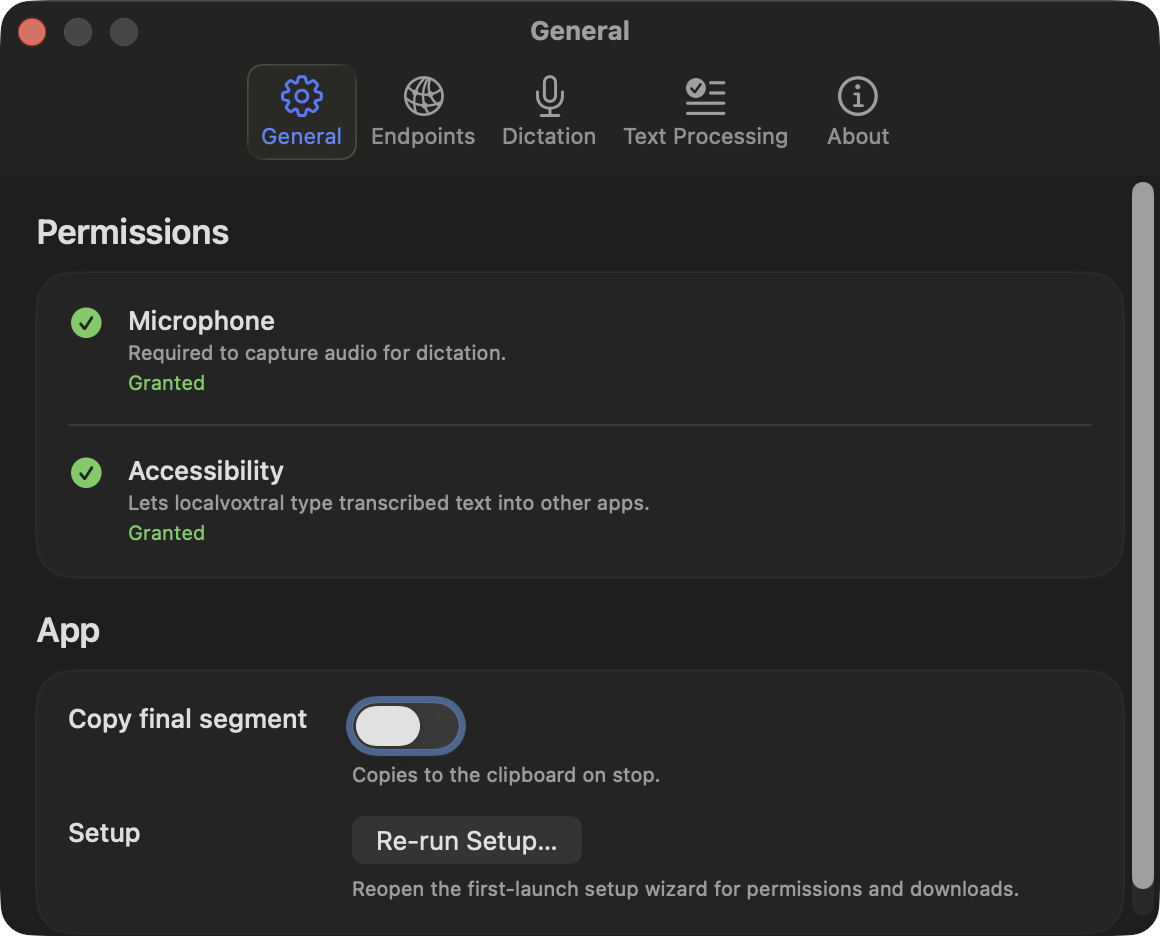
- General: permission status for Microphone and Accessibility, with grant buttons, Re-run setup, and two startup switches. Open localvoxtral at login starts the app when you log in. Open the window at launch opens the window on History every time the app starts. Both are off, and a first launch shows the setup wizard instead of the window.
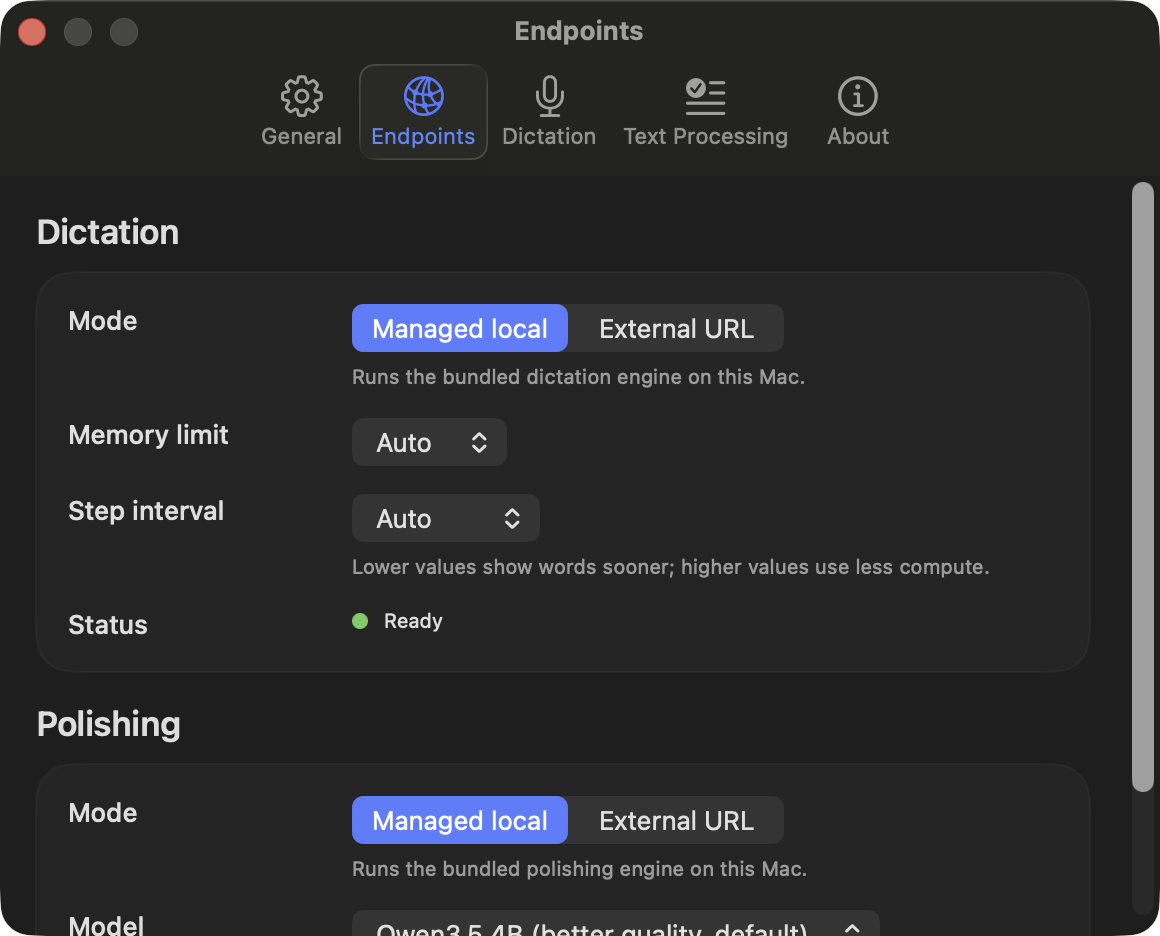
- Engines: Dictation and Polishing each switch on their own between Managed local, with a model picker and a status light for each, External URL and Mistral API.
- Dictation: the trigger, Copy on stop, the send phrases, the wait before pressing Return and the Overlay Buffer send phrase switch, the needs-you cue and its shortcut, the Quick capture to Inbox shortcut, ducking other audio, and the overlay's font size, lines before scrolling, word wrapping and stop after silence. Advanced holds Live Auto-Paste and its own send phrase switch, the menu bar mode and the Copy last dictation shortcut.
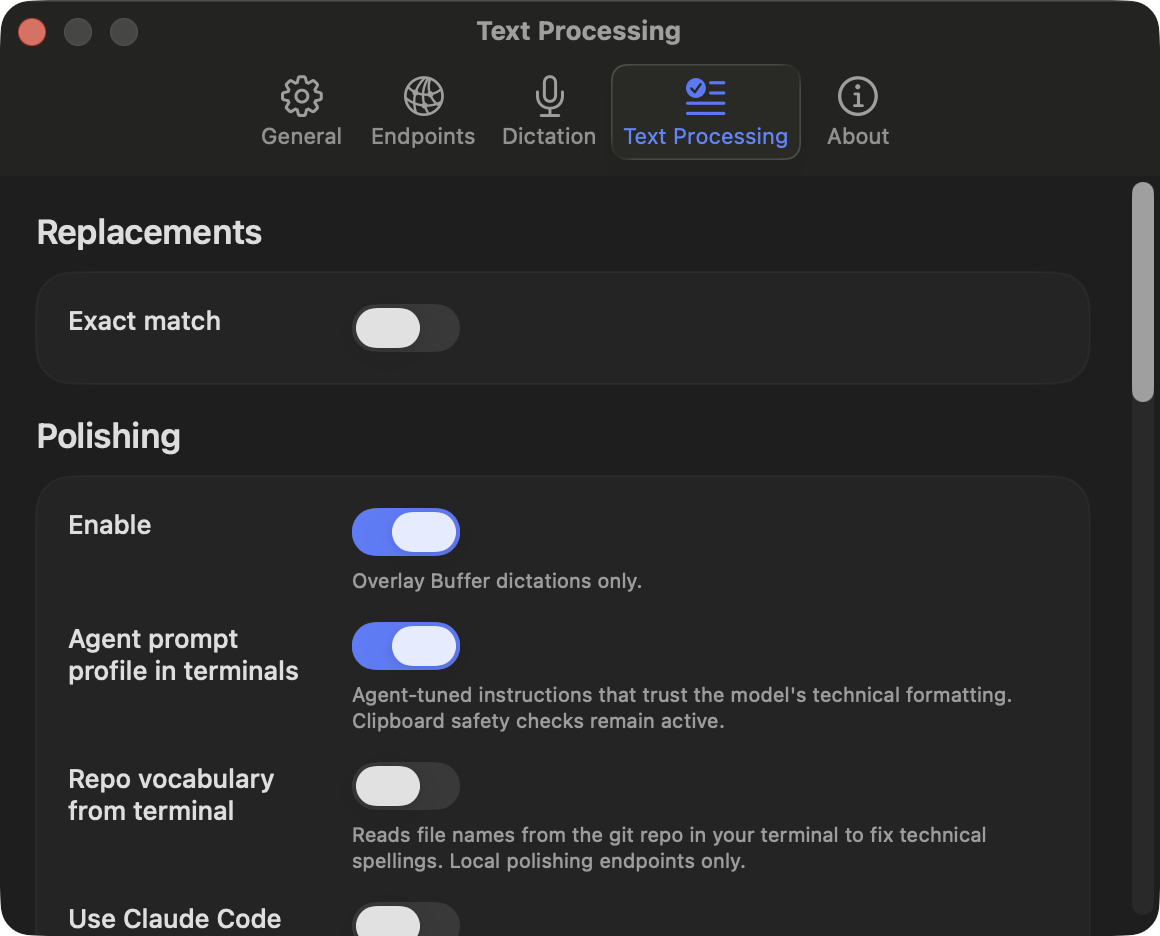
- Text Processing: About you, Suggest terms, the LLM Polishing switch, the agent prompt profile and spoken clipboard paste. Advanced holds learned terms, the coding agent's terms, the legacy replacement dictionary, the instructions' size and the prompt files.
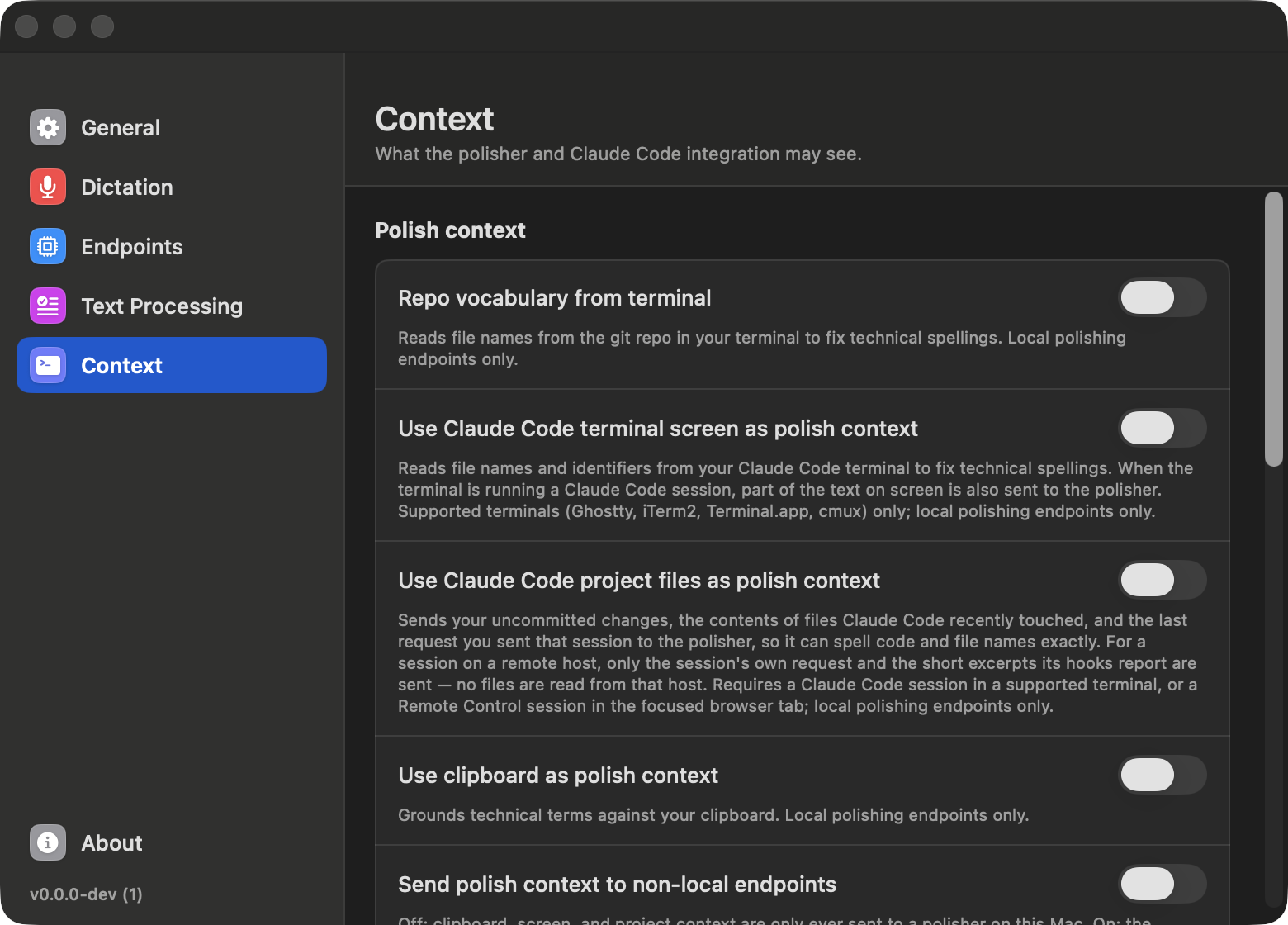
- Context: what the polisher may see (repo vocabulary, clipboard, the agent's screen and session). Each toggle's title names what leaves this Mac. The full terms are in Terminals & coding agents.
- Integrations: one pane per harness, each with a status dot. Green means detected and set up, yellow means a setup step is pending, grey means not installed.
- Claude Code and opencode install their plugins.
- Mistral Vibe installs its hooks.
- Codex installs its plugin and turns green once Codex has run the hooks.
- herdr shows detection and herdr's saved machines (herdr).
- Remote hosts enrolls SSH hosts for remote sessions.
- Terminals: one pane per terminal app, plus any you add, showing whether it is installed and what it supports (See whether a dictation joined). cmux's pane also holds its session join.
- About: version, link to the repository, and Export Diagnostics, which writes a redacted local report to the Desktop.
Screenshots

| General | Engines |
 |
 |
| Dictation | Text Processing |
 |
 |
| Integrations: Claude Code | |
 |